Using the Survey Builder
The survey builder is where you create and edit your surveys. This guide explains the interface and how to use each tool effectively.
Builder Interface Overview
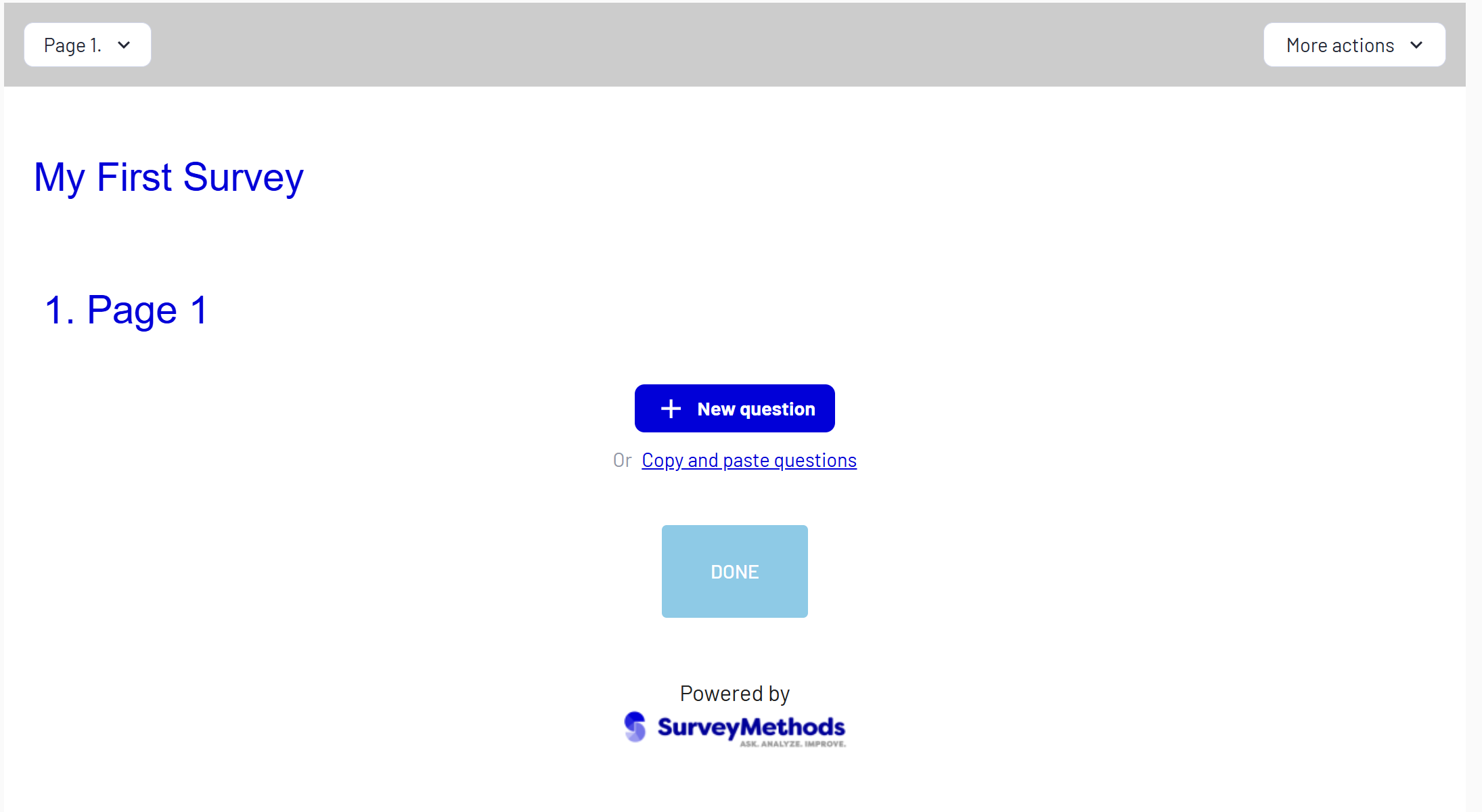
The survey builder consists of three main areas:
-
Top Toolbar - Navigation and structure

-
Left Sidebar - Question settings and options
-
Main Canvas - Question editing area
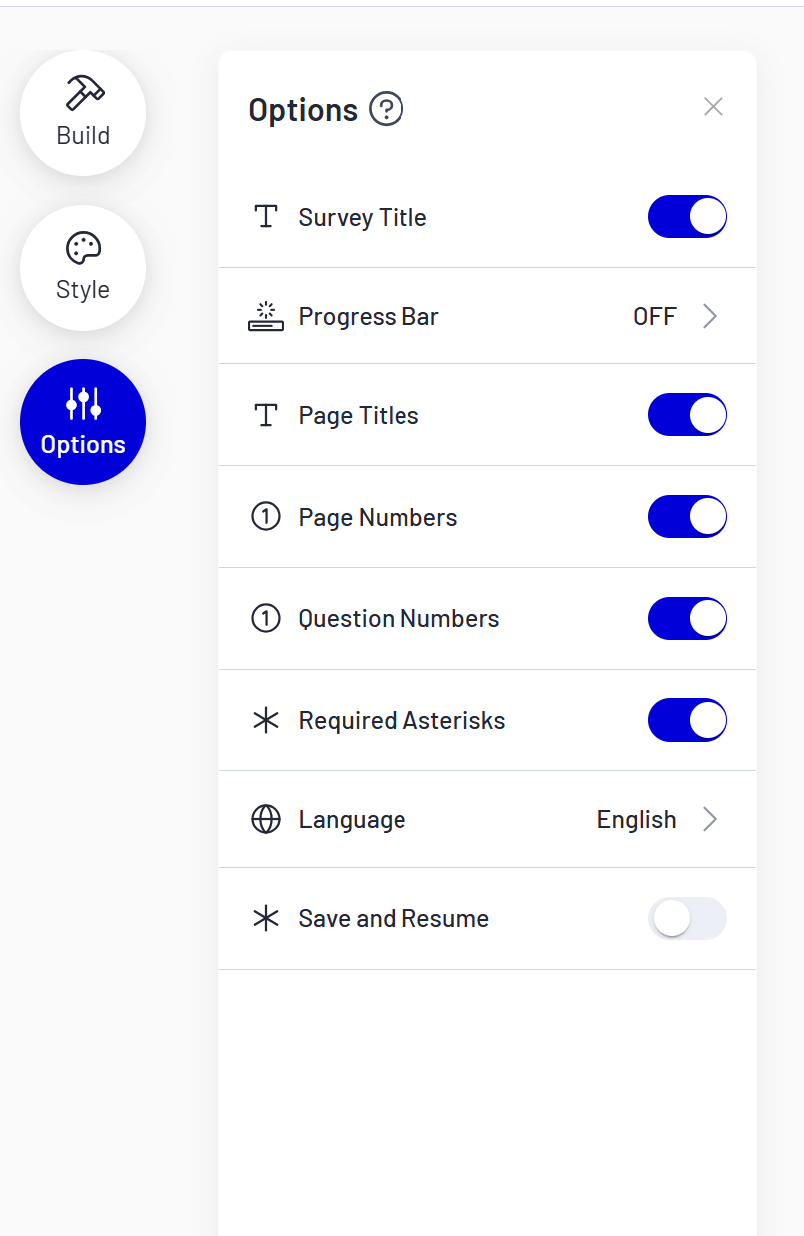
Left Toolbar
The toolbar provides navigation between different views:
- Build - The primary editing view for adding and managing questions
- Design - Customize colors, themes, logos, and fonts
- Logic - Add skip logic to direct respondents based on their answers
- Options - Configure survey settings like response limits and access controls
Adding Questions
Quick Add
Click the + button to add a question below the current one.
Question Type Selector
- Click Add Question
- Enter question text and select your question type.
- Configure the question in the editor
Copying Questions
- Hover over a question and select Copy
- Choose the page, and question to copy this question to, specifying before or after.
Working with Pages
Adding Pages
- Click New Page at the bottom of the sidebar
Page Settings
Each page has:
- Title - Optional heading displayed to respondents
- Description - Optional explanatory text
Reordering Pages
Use the more actions menu at the top of the page, and then select ‘move page’.
Question Editor
When you select a question, the editor shows:
Question Text
- Rich text editor with formatting
- Insert images and media
Answer Options
For choice-based questions:
- Add/remove options
Settings Panel
Question-specific settings:
- Required/optional toggle
- Validation rules
- Display options
- Logic conditions
Piping
Piping lets you insert a respondent’s previous answer into later questions or answer options. This creates a more personalized survey experience.
How Piping Works
- Available from page 2 onwards (references answers from previous pages)
- Can be used in question text and answer options
- Uses the format
{{ Q1 }}where Q1 is the question identifier
Example
If question 1 asks “What is your favorite product?” and the respondent answers “Widget Pro”, you can pipe that answer into a later question:
Question text: “You selected {{ Q1 }}. What do you like most about it?”
Displays as: “You selected Widget Pro. What do you like most about it?”
Preview Mode
Test your survey before distributing:
- Click Preview in the top toolbar
- Navigate through as a respondent would
- Test all skip logic paths
- Check mobile responsiveness
Preview opens in a new tab so you can compare with the editor.
Tips for Efficient Building
- Plan first - Sketch your survey structure before building
- Use pages - Group related questions for better flow
- Preview often - Test after adding logic
- Copy similar questions - Faster than creating from scratch
- Use templates - Start with proven structures
Related articles:
Was this article helpful?